01
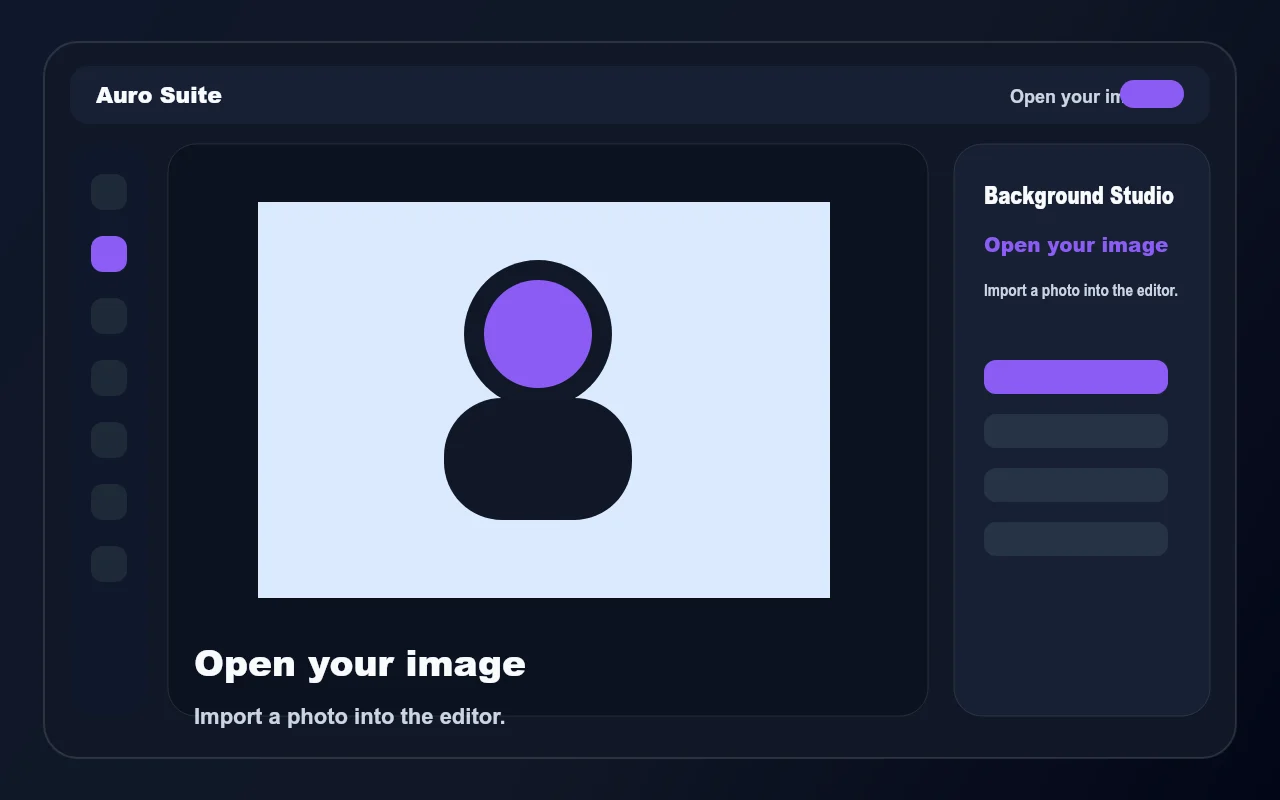
Open your image
Start in the photo editor and import the image you want to cut out.
AI background remover
Cut out a subject in the browser with Auro Suite Background Studio, then keep transparency, add a new color, or blur the background.
Import an image, open Background Studio, and apply a clean cutout in a few clicks.
Start in the photo editor and import the image you want to cut out.
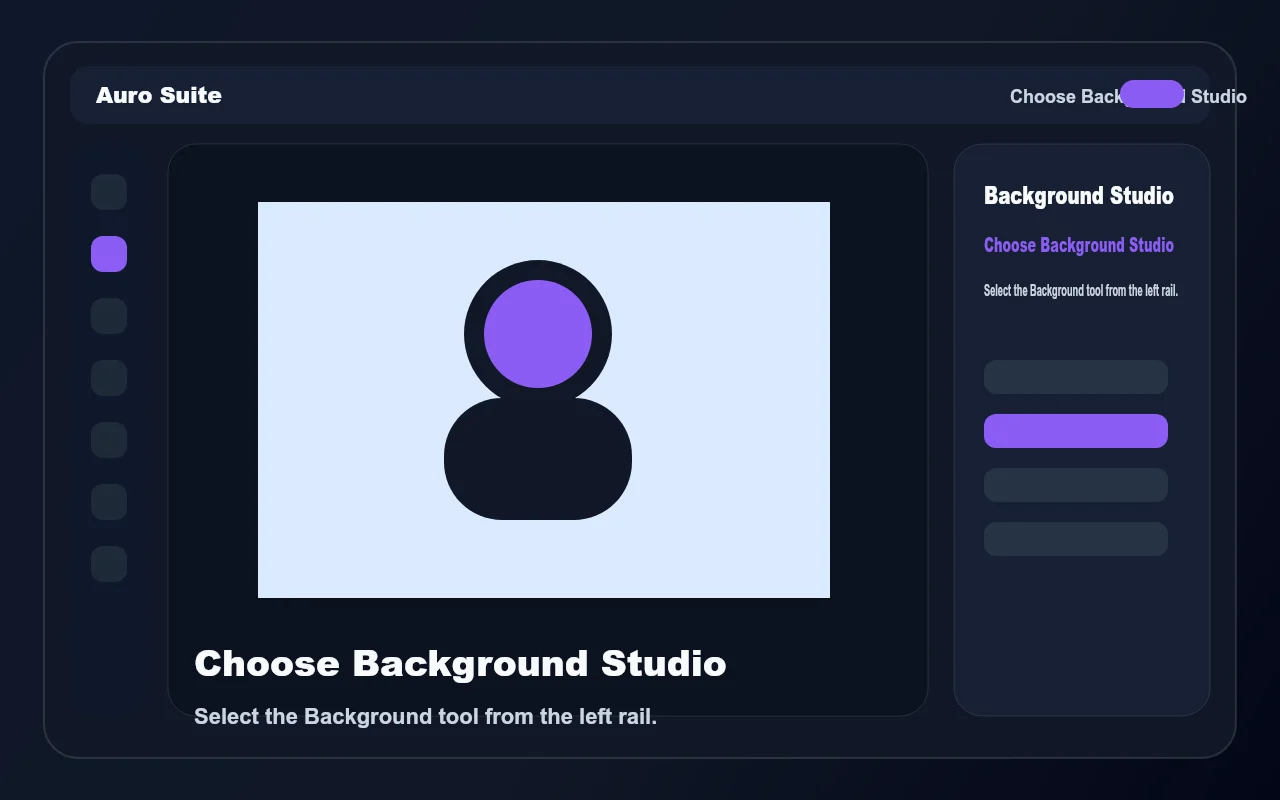
Select the image layer and open the Background tool from the left rail.
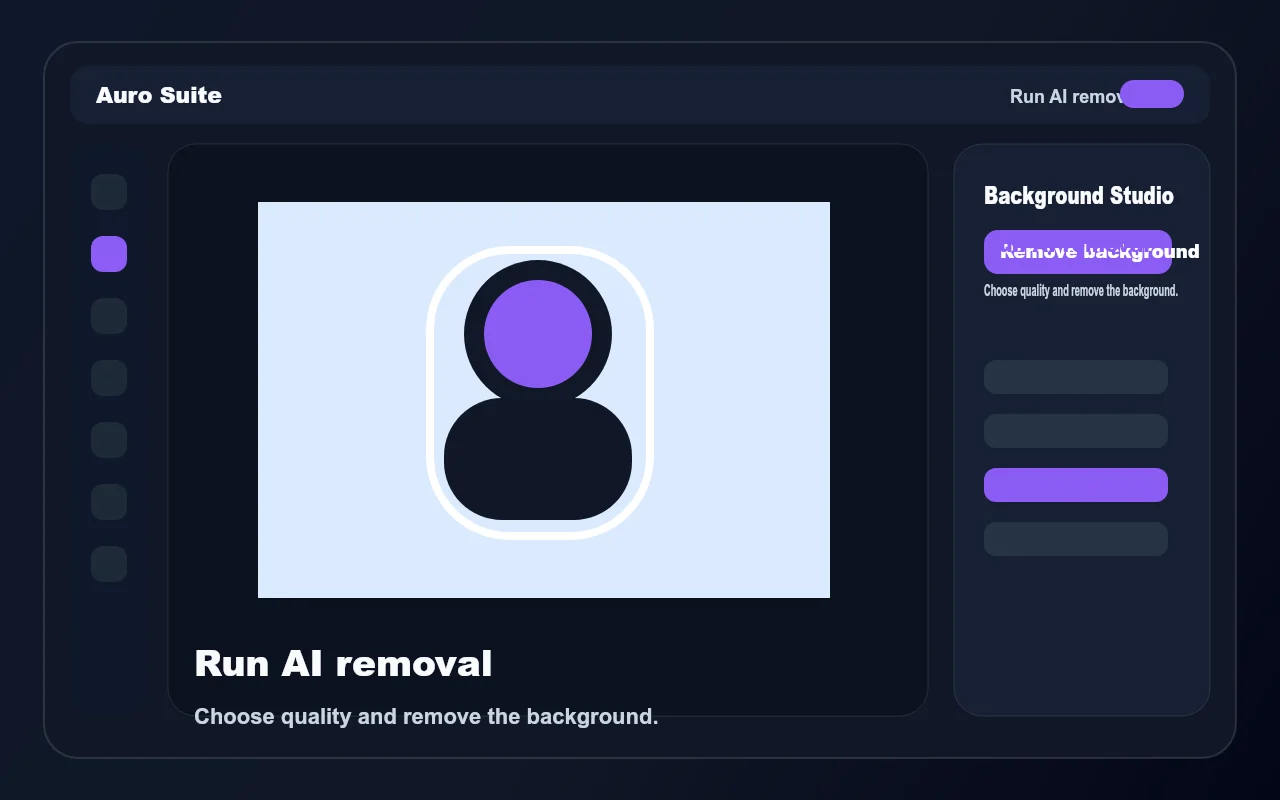
Choose Fast, Balanced, or Best quality, then click Remove background to isolate the subject.
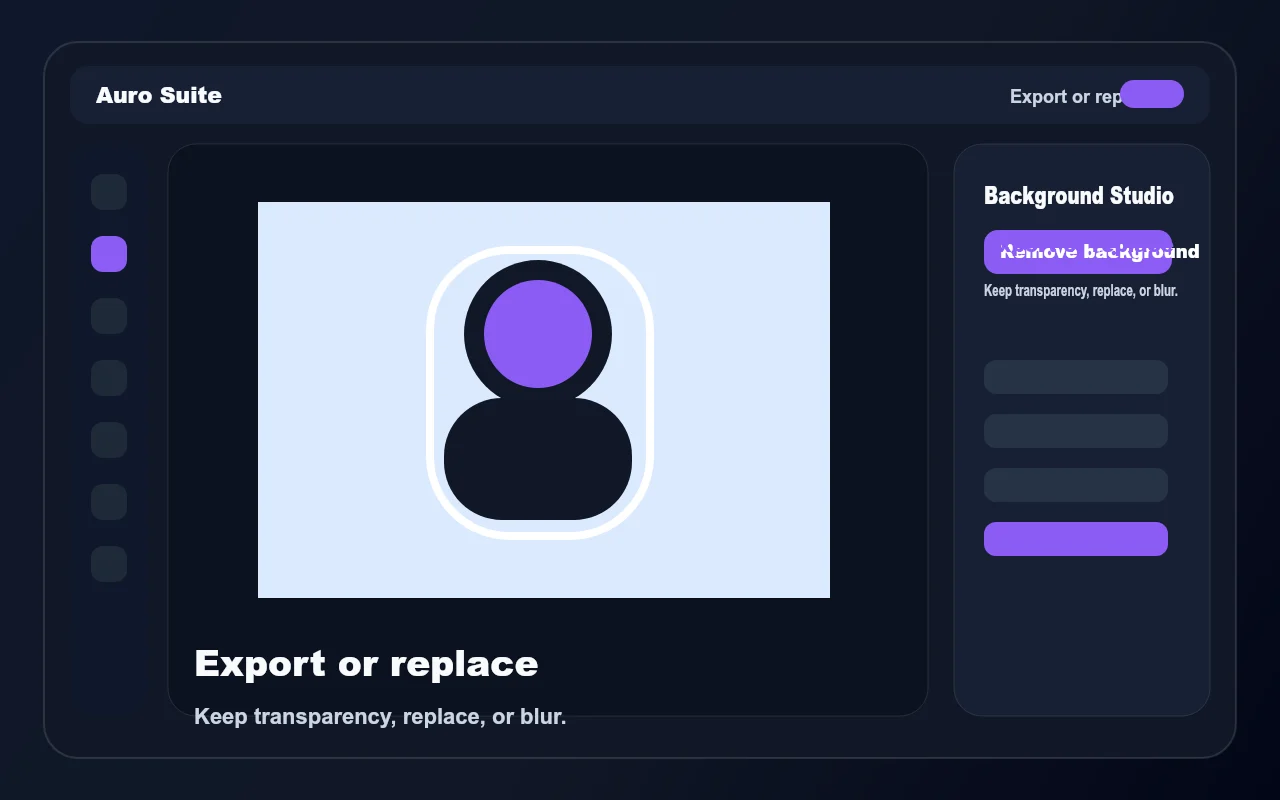
Keep a transparent background, add a color or image behind the subject, or create a soft blur effect.
Background Studio uses local AI models for subject isolation and keeps the final edit inside the photo editor.
AI background removal runs in the browser, so you can edit quickly without a separate upload workflow.
Pick Fast, Balanced, or Best depending on the image and the result you need.
Remove the background and export a transparent image for thumbnails, product shots, and social posts.
Add a solid color, image layer, or blur treatment behind the subject.
Yes. After removal, keep the transparent background and export in a format that supports it, such as PNG or WebP.
Yes. You can remove a subject background and place the cutout into a YouTube thumbnail template.
Yes. Background Studio includes replace and blur options after the cutout is created.
No. This landing page is indexable for search, while the editor itself remains noindex.
AI background remover